

Money
What comes in, what goes out, and what each job made
Invoices from the job, bills with reminders, receipts from the crew, and a margin on every job before it closes.
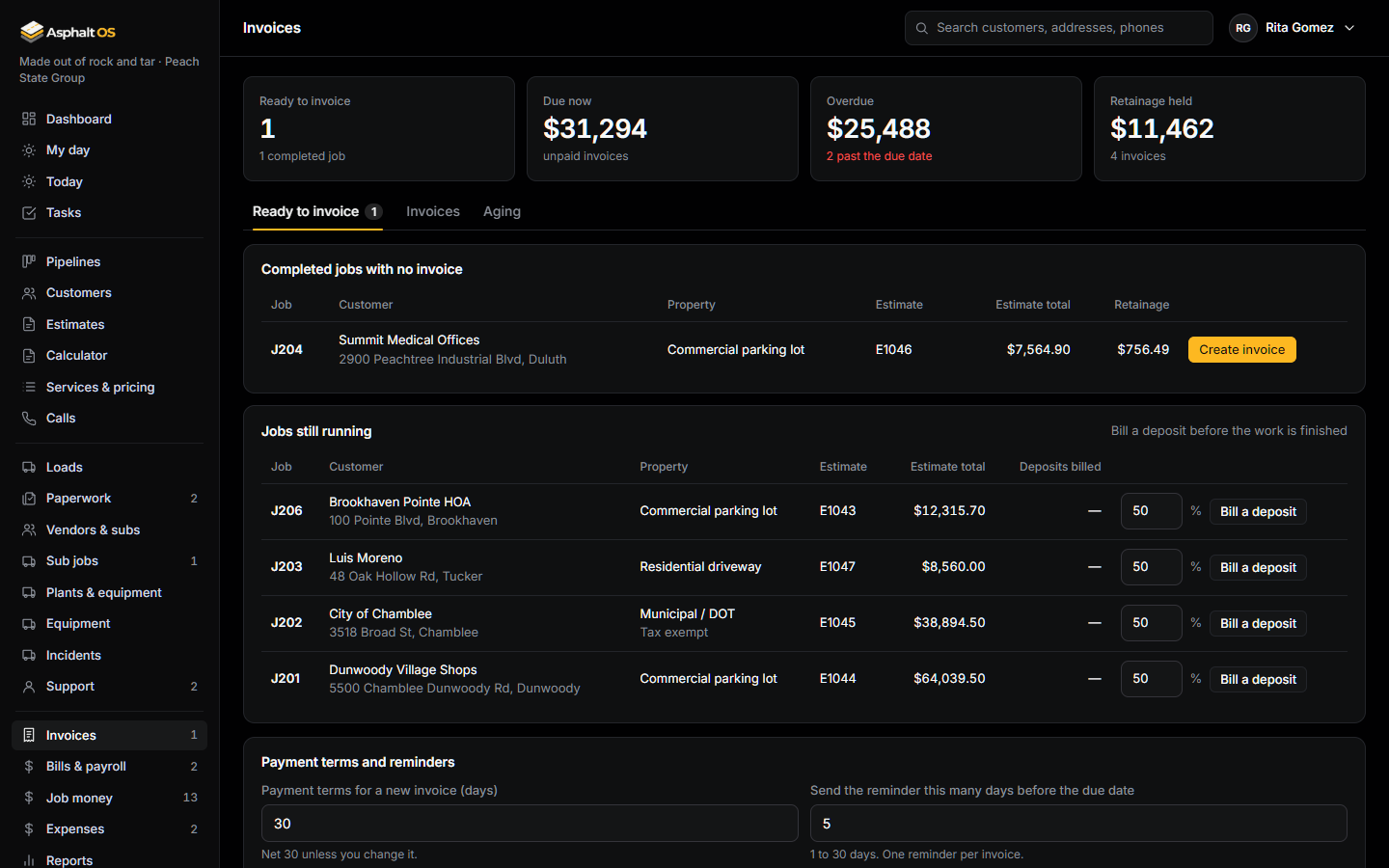
Invoices, payment links and reminders
Create invoice on a completed job makes its final invoice from the job's estimate. Bill a deposit on a running job bills a percentage of it. Retainage (10% to start) is held until the job is signed off.
- Send invoice emails the PDF with a Pay online link that works for 180 days. The customer sees your brand, the amount due and the due date, with no sign-in.
- Pay online opens Stripe's own checkout on your company's own Stripe account, and the money goes straight to you. Asphalt OS never holds money and never sees a card number. Stripe's signed payment notice marks the invoice paid, and a customer can never be charged twice.
- Without Stripe there is no pretend checkout: the invoice says how to pay by check or bank transfer. The PDF carries no link of its own; it points at the link in the email.
- One reminder 5 days before the due date and one overdue notice the day after, each with a Pay online link where there is something left to pay, each logged on the invoice. Both are settings.
- Record a check, a bank transfer or cash by hand. The Aging tab groups what customers owe by how late it is.
Read more: Invoices, payment links and reminders.
Job money and margin
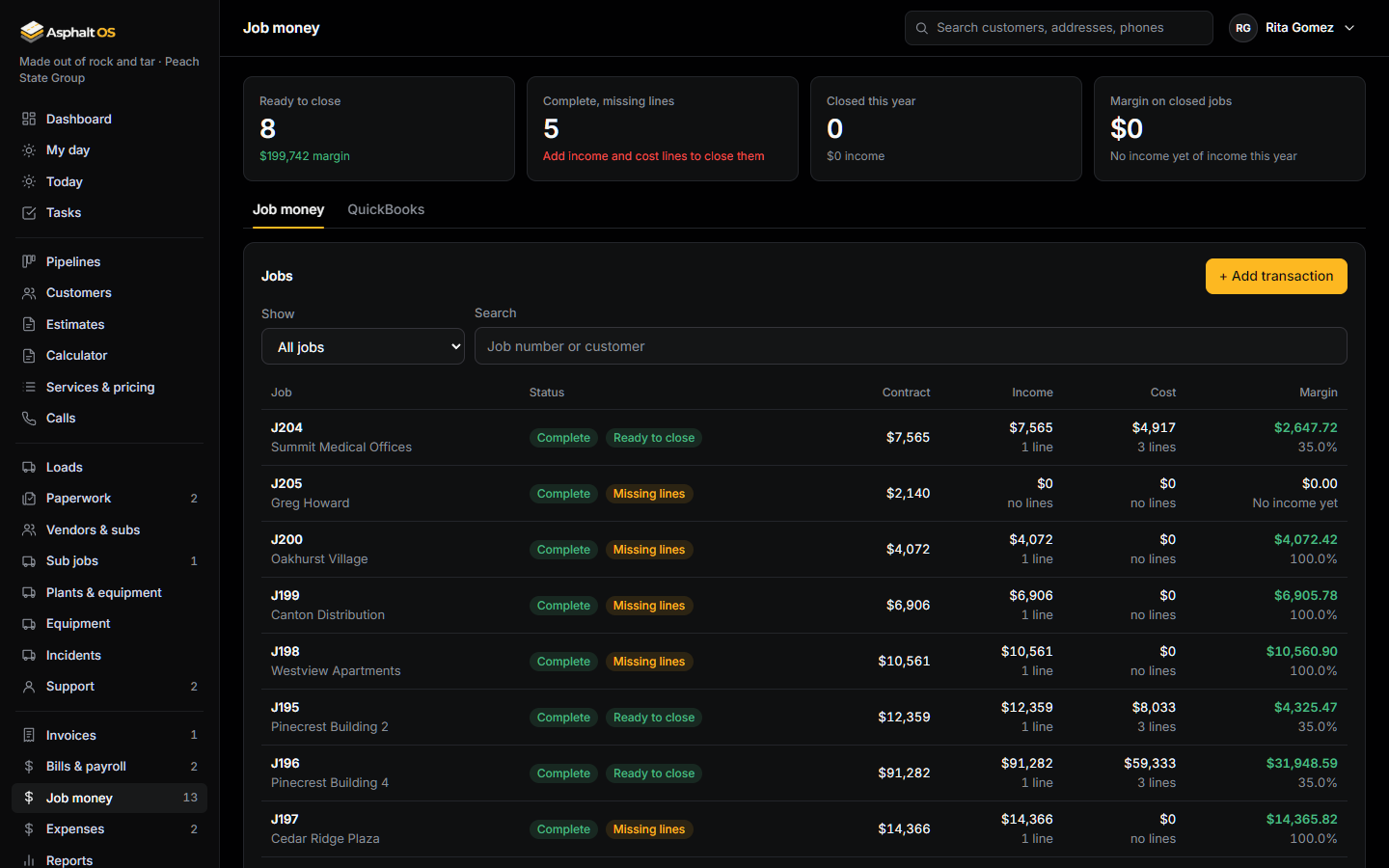
Every job lists its income lines and its cost lines: contract, change orders and deposits on one side; materials, labor, subcontractor, equipment, trucking and permits on the other. The margin is the income minus the cost.
- Closed is the last step after Complete: the work is done and the money is done. The database allows it only when the job has at least one income line and one cost line.
- An approved crew expense adds its own cost line to the job at once.
- Lines come in by hand, from a QuickBooks CSV export, or from QuickBooks Online once your company connects it.
Read more: Job money and margin, QuickBooks import.
Bills and payroll
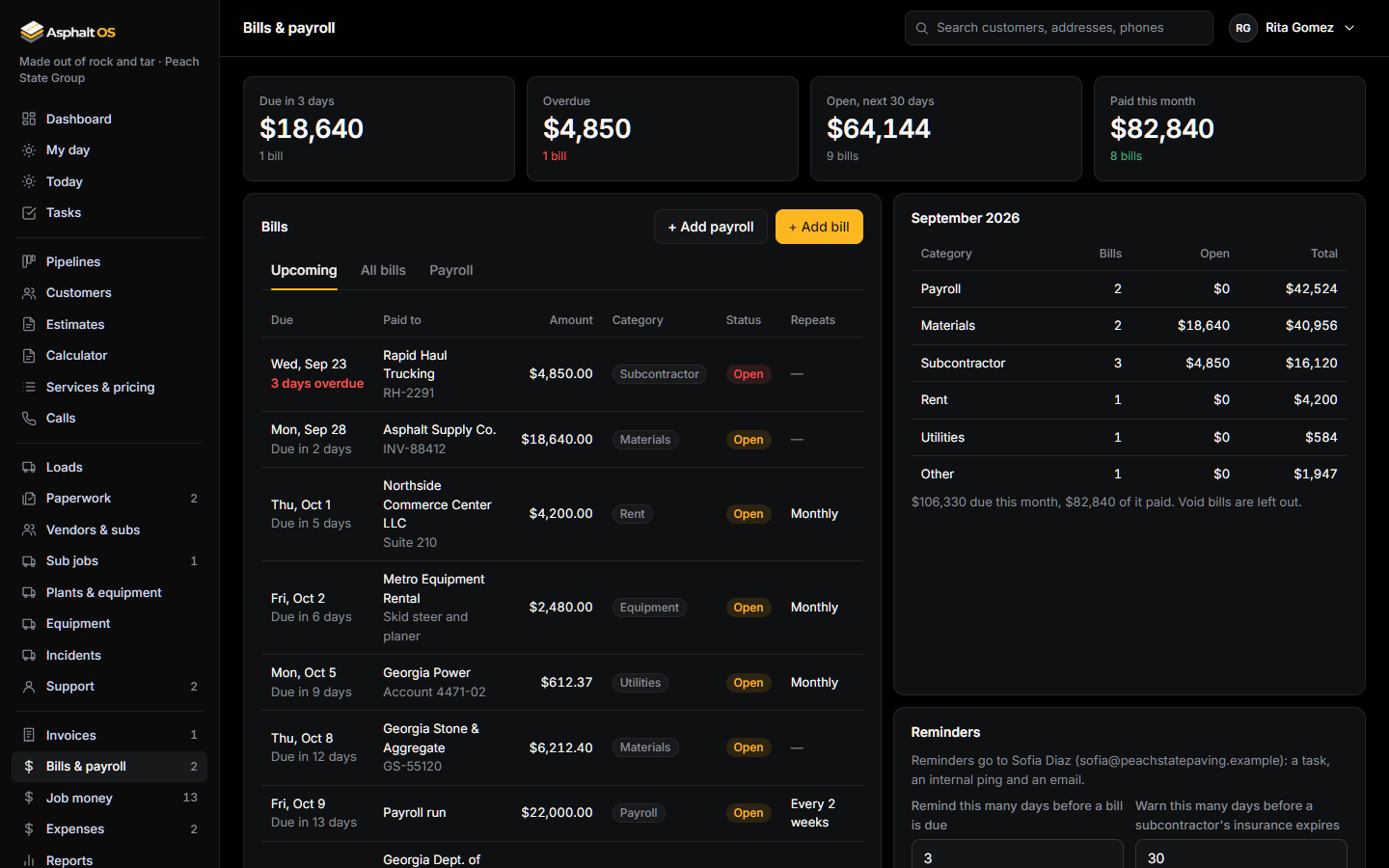
What the company owes, with a reminder before each bill is due: 3 days to start, as a task, an alert and an email to the office. Repeating bills (weekly, every two weeks, monthly) make the next one when you mark them paid.
- Categories: Payroll, Materials, Subcontractor, Equipment, Insurance, Rent, Utilities, Taxes and Other. A card totals the month by category.
- Payroll is tracked as totals only: one pay run, one date, one amount. The pay itself runs in your payroll provider. There is no place for Social Security numbers, bank details or per-employee pay.
- A bill is never deleted. Void is final and stays on the list for the record.
Read more: Bills and payroll.
Vendors and subcontractors
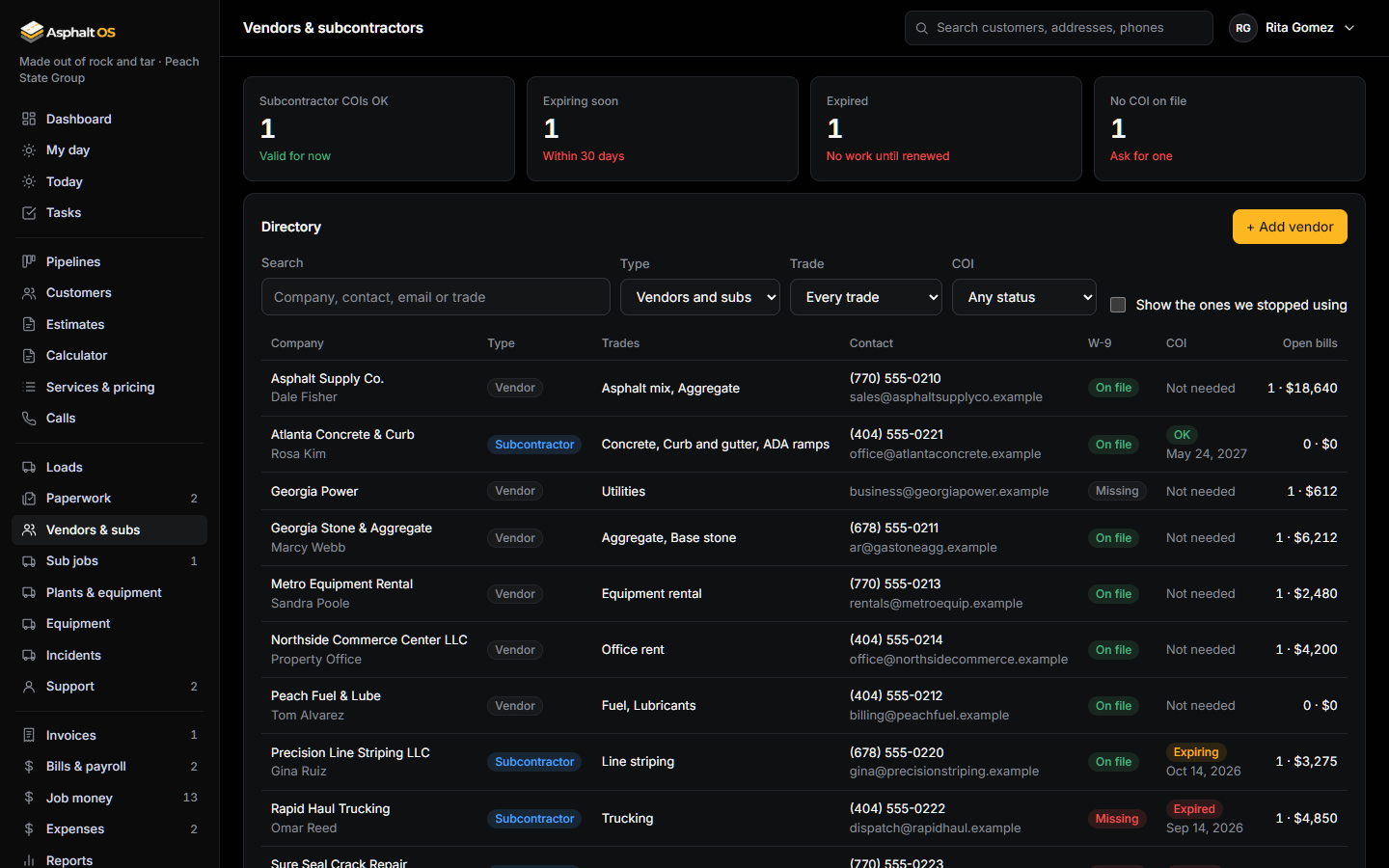
One directory of the companies you buy from and hire, with each one's W-9 and certificate of insurance on file, and its bills next to it.
- 30 days before a subcontractor's COI expires, and again once it has expired, the office gets a task and an alert. A sub with an expired COI is flagged on every sub job.
- Vendors are never deleted: deactivating keeps them on their old bills and stops new ones.
Read more: Vendors and subcontractors.
Crew expenses
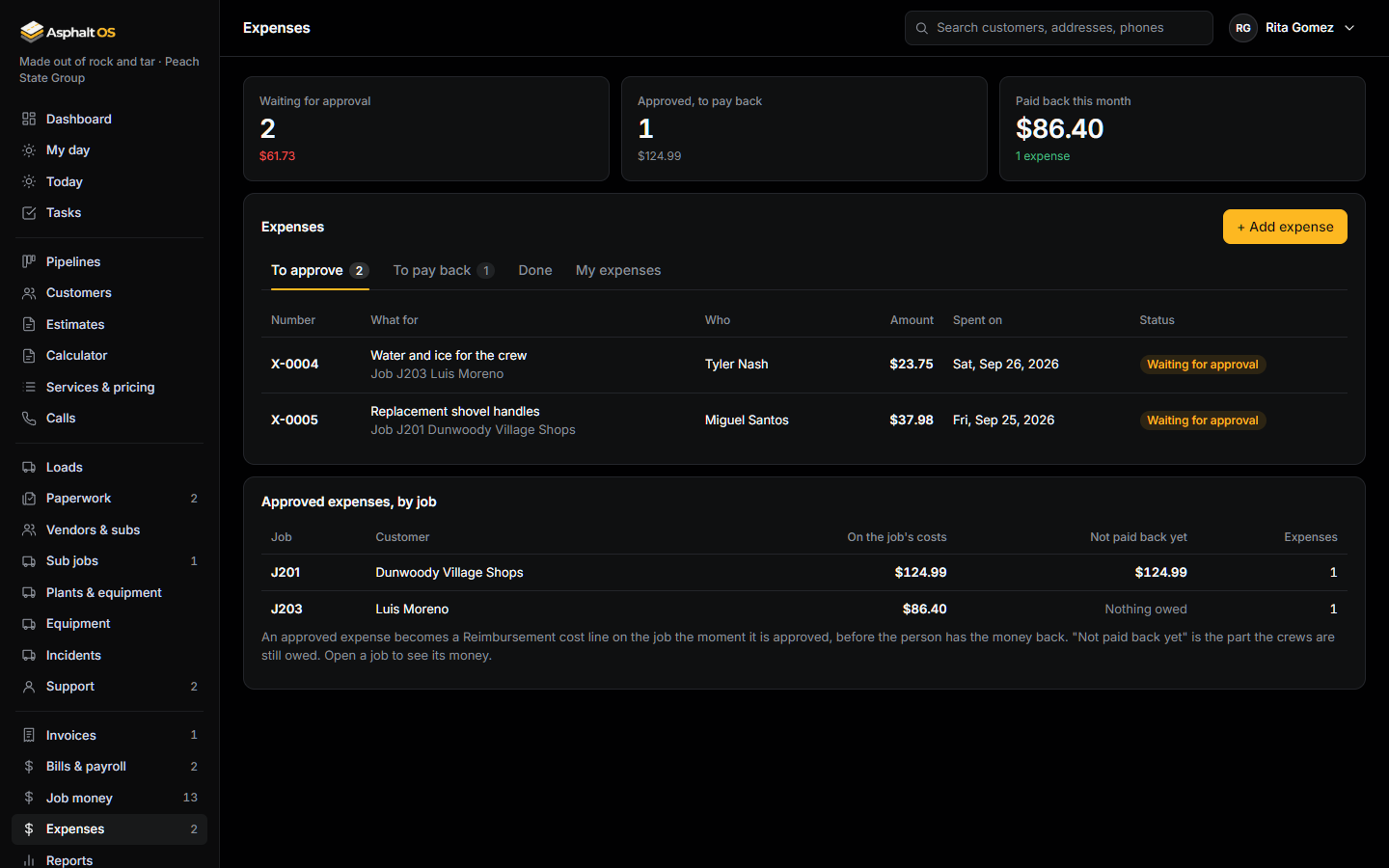
A crew member snaps the receipt on the phone, types the amount and what it was for, picks the job and sends it. The office approves or declines with a reason, the cost lands on the job, and someone marks it paid back.
- Nobody approves, declines or marks paid back their own expense.
- If the expense changed while the approver had it open, approving is refused: look it over again.
- Every default role can send expenses and see their own.
Read more: Crew expenses.
Reports and the dashboard
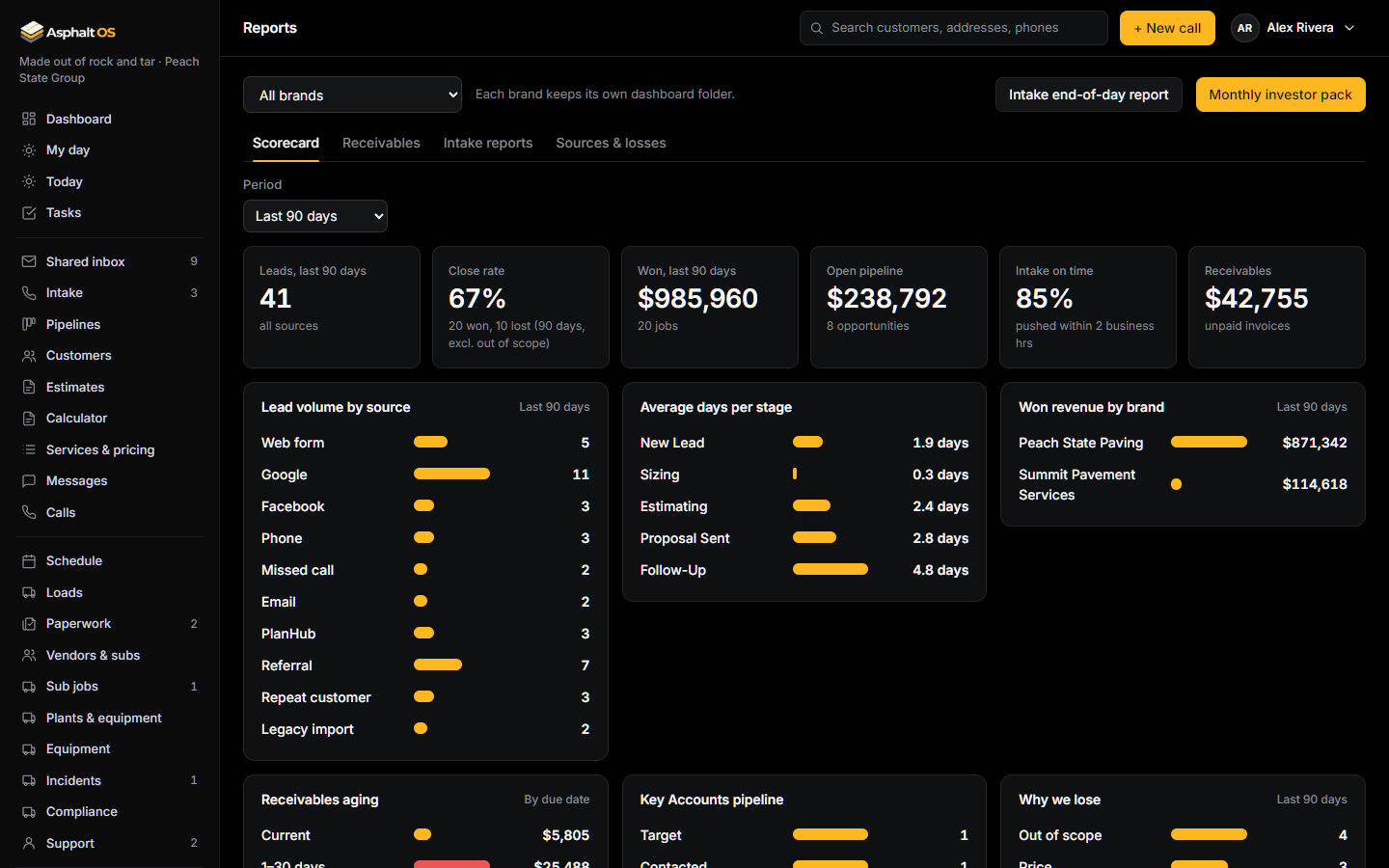
The dashboard shows each person what their role can see: the open pipeline, wins in the last 90 days, quotes out this week, jobs on the board, cash collected this month, receivables and bills due, plus a Needs attention list.
- Reports by brand and period: the scorecard (leads, close rate, wins, days per stage, why you lose), receivables aging, the intake end-of-day reports and sources and losses.
- The monthly investor pack puts the key numbers on one page, by brand, ready to print or save as PDF.
Read more: Reports and the dashboard.
Marketing numbers
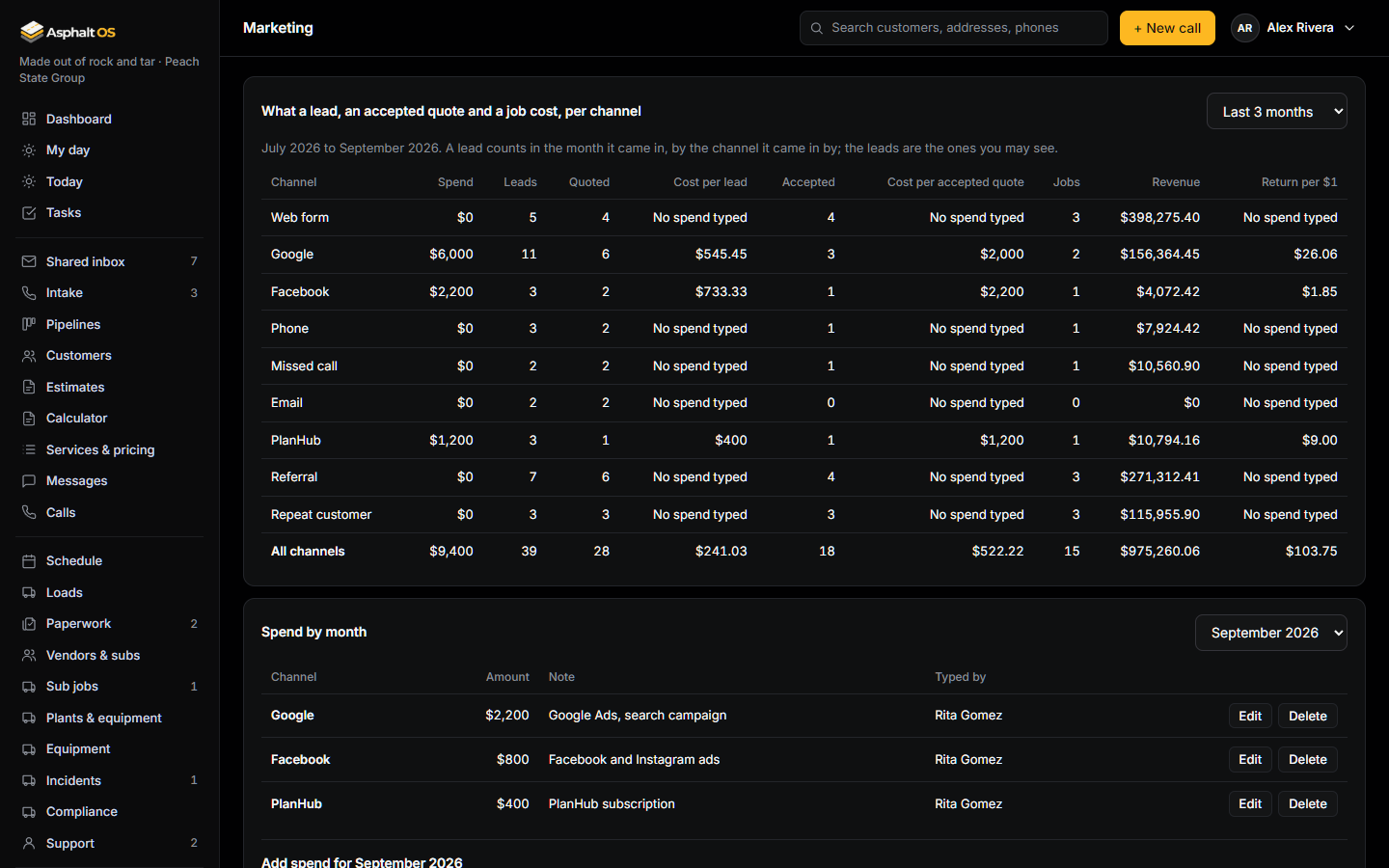
Type what you spent per channel each month, and the Marketing page puts it next to the leads that came in by that channel that month: how many were quoted, how many the customer accepted, how many became jobs and what those were worth. It works out the cost per lead, per accepted quote and per job, and the return per dollar.
- A channel is where the lead came in by, as the app records it: Google, Facebook, PlanHub, the website, phone, email, referrals, repeat customers.
- A lead counts in the month it came in, whatever happened later, so a month's cost per job is honest about that month's spend.
- A channel with spend and no leads says so. Nothing talks to the ad platforms: the numbers are yours, in your own database.
Read more: Marketing numbers.
See it with your own jobs
The demo opens in your browser with a sample paving company. Or tell us about your company and we will walk you through the real thing.